I’m sad to share that Gayle McCormick O’Connor died suddenly in her sleep on Sunday, October 18, 2020. Gayle was a longtime legal technology marketing specialist. If you hadn’t the luck to know her, you doublessly noticed her at any of dozens of legal tech conferences. Gayle was a star, truly a nova who shone brightly and cared passionately about her colleagues, friends and, above all, her son, Seamus and husband, Tom O’Connor–e-discovery and LegalTech thought leader and my dear friend.
Gayle’s luminosity was no accident. She worked at it. Gayle turned heads. Gayle danced in front of the band. She dressed to the nines in footwear that defied gravity and description. Gayle was a canvas for her art and her art was celebration. I’ve seen Gayle spin atop the bar in a packed Vegas biker bar. I’ve sung Viva Las Vegas with Tom and Gayle at the top of our lungs beside the Bellagio fountains. Just a month ago, Gayle sang Happy Birthday to me in her unforgettable Marilyn Monroe-Seducing-John-Kennedy style. Gayle was a seductress. She unapologetically called herself “Cougar.” Gayle’s tales of trysts with rock stars in the 70’s could have inspired Almost Famous. Gayle lived large and loved large. The public Gayle was sensational. She defied age to change her, and age demurred.
Yet, there was a private side to Gayle; a sweet, maternal aspect that appeared when the makeup and stilettos came off and she was tired, sore and having a cigarette on the porch. This Gayle deeply missed her mothers, who died in quick succession less than two years ago. This Gayle was frustrated by COVID and pained by politics. She found solace in her family and friends. Gayle was unendingly proud of Seamus, always her deep well of joy. I’m certain that no wife was ever more supported and adored by her husband than Gayle O’Connor was by Tom O’Connor. Gayle was Tom’s prize. He worshipped her, and she him. After thirty-one years of marriage on their own terms, Tom’s eyes still sparkled when Gayle was the center of attention. He was so proud to be her husband. Who wouldn’t envy them? They were blessed to have each other. They should have had more time, for themselves, and for all of us who love them.
Tom and Gayle. Saying that is like saying “red beans and rice.” Perfect together. I cannot believe she’s gone, but she lives on in the many happy stories we will tell of her and the light she brought to our lives.
The Irish have a blessing for the departed that seems right for a McCormick O’Connor: “May the road rise to meet you, and the wind always be at your back. May the sun shine warm on your face and the rains fall softly on your fields. And until we meet again, may God hold you gently in the palm of his hand.”
If there’s a rock-and-roll heaven, you’ll find Gayle right up front with the band. She’ll be dancing and all eyes will be on her.
Tom is planning a musical celebration of Gayle’s life for 3:30pm Saturday afternoon, October 24 at Bayou St. John. Here are the details in Tom’s words:
“For anyone in New Orleans, on Sat Oct 24 we’re going to do a New Orleans celebration of Gayle’s life at her place, 3234 Grand Route St.John. (that’s between Moss St and the Esplanade) We’ll walk down to the Bayou (half a block), I’ll say a (very) few words, have a tribute song from her friends Maggie & Kess, scatter some ashes, then go back to her house for some music on the porch from 4 to 6 by Glenn David Andrews, one of Gayle’s favorite New Orleans musicians.”
“We’re still in COVID-19 restrictions folks so wear masks and socially distance in order to allow the celebration to go off without a hitch. If you bring flowers, please bring yellow flowers …it was her favorite color.”
Regular readers may tire of my extolling the virtues of native forms of production; but battleships turn slowly, and this one must yet be turned. Apart from judges (whose frequent unfamiliarity with electronic evidence makes them easy prey for prevarication), those best situated to end the ruin of TIFF+ productions are those who profit most from doing nothing.
Articles, speeches and blog posts can only go so far. What’s needed are published judicial decisions. Whether they go one way or the other, we need thoughtful opinions that lay out the issues in an accurate and balanced way, informing litigants what’s at stake. Many published orders fail to weigh the genuine pros and cons of each form of production. A few read as if TIFF images were the evidence and requesting parties were seeking to have God-given TIFF images converted into heretical native files. Talk about confused!
Seeking another published opinion on the merits of native production, I recently supplied a declaration to a federal court. I’m attaching an anonymized version of my testimony in the hope that readers will weigh the arguments. I concede “it ain’t Shakespeare,” but it’s honest. I changed a lot to make it difficult to identify the matter, although the Declaration is a matter of public record. Sorry, but I thought a little less candor would be the wiser path. The lawsuit is still very much in contention.
Yesterday, I asked my Electronic Evidence class at Tulane Law School, “What’s the difference between a preservation letter and a legal hold notice?”
Do you know?
I got the simple answer I sought: You put your clients on notice of legal hold; you send a preservation letter to the other side. Another difference is that there is no legal duty to dispatch a preservation letter, but woe betide the lawyer who fails to initiate a prompt and proper litigation hold!
In truth, the two missives have much in common. Both seek the preservation of evidence, and both are best when clear, specific and instructive. Both must go out when you know less than you’d like about sources of potentially responsive information. Finally, both tend to receive minimal thought before dissemination, resulting in easily ignored, boilerplate forms crowding out artfully-targeted requests.
If I’m frank, most of what passed for preservation letters “back in the day” were, well, crap. They sprang from forensic service providers and sounded more like ransom notes than statements of a practical and proportionate legal duty. Literal compliance required pulling the plugs on the computers and backing away…very…very…slowly. But, with the first 2006 amendments to the Federal Rules of Civil Procedure came a groundswell to routinize e-discovery, to label its stages (as in the iconic EDRM diagram) and to systemize its execution by development of “defensible, repeatable processes.” So, way back when, I wrote an article introducing requesting parties to the “perfect” preservation letter and offering an example as a drafting aid. Perhaps because it was the only lifeboat in a storm, it took off; and it wasn’t long before lawyers on the north side of the docket made it their favorite opening salvo.
If that sounds like bragging, know that I’m not proud of what happened. People started using the exemplar “perfect” letter in the lazy way I hoped they wouldn’t: as a form pitched at cases of every stripe and type.
Hey folks. “Perfect” was tongue-in-cheek! I wrote,
You won’t find the perfect preservation letter in any formbook. You must custom craft it from a judicious mix of clear, technically astute terminology and fact-specific direction. It compels broad retention while asking for no more than the essentials. It rings with reasonableness. Its demands are proportionate to the needs of the case, and it keeps the focus of e-discovery where it belongs: on relevance.
But no one read that. It was just too easy to hand the example over to an assistant and say, “send this out in all our cases.”
Fast forward to 2018 and counsel to the President of the United States sends out my letter without updating it to reflect any of the changes we’ve seen in sources and forms of electronically stored information since, say, Hurricane Katrina. Imagine a preservation letter from President Trump that ignores tweets, for goodness sake! Clearly, the article and the accompanying exemplar letter both needed more than a fresh coat of paint. Weirdly, the gap hadn’t been filled by anything else in fifteen years.
A few weeks back, I updated and published the exemplar letter, with a fresh plea to use it as a drafting aid and not as a form. Today, I finished updating the guide to its use, once again called (IRONICALLY) The Perfect Preservation Letter. It’s still no masterpiece. To be useful, the letter must be a living document, changing to reflect new sources (Dating sites! I forgot to add dating sites!) and improved ways to preserve and acquire evidence. I hope a new generation of lawyers finds it instructive. There’s plenty of room for improvement, so dig in, make it better, make it your own.
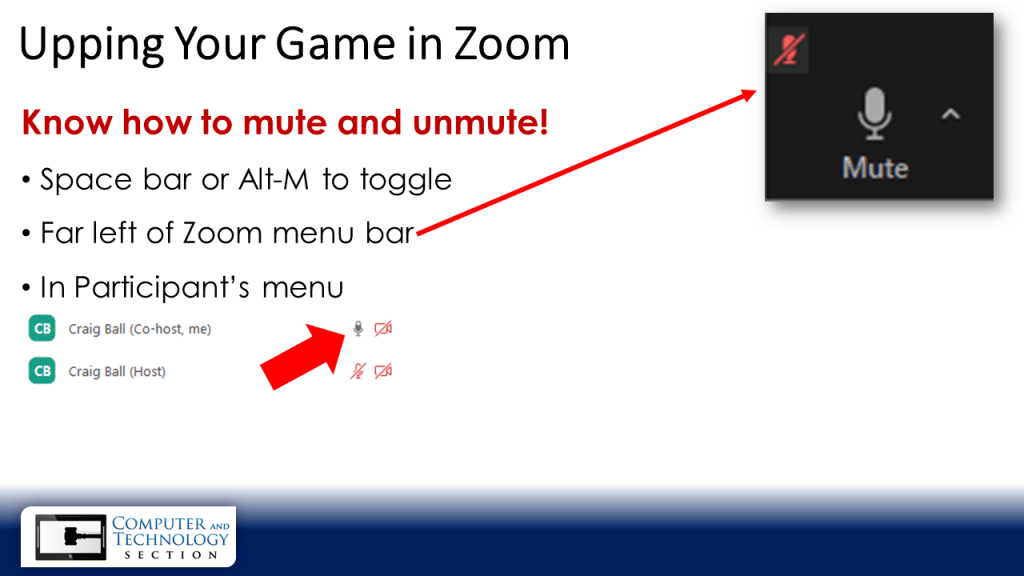
I lately presented a program for the State Bar of Texas Annual Meeting alongside Texas District Court Judge Emily Miskel. Like everything else, the venerable Annual Meeting was recast as a virtual event. Our topic was “Upping your Game in Zoom,” and we spoke of many ways to improve the quality of online video meetings and hearings. Judge Miskel and I covered dead simple ways to avoid common errors and some advanced techniques. One advanced approach I shared was making your presentation visuals serve as your dynamic Zoom background, enabling a presenter to interact with background visuals in the same way that TV meteorologists explain weather patterns using a green screen map.
There are times when a disembodied narration of screen-filling visuals is best; yet, there are times when you don’t want to force viewers to choose between speakers and visuals, as occurs when Zoom attendees lack the screen real estate or mastery of the Zoom interface needed to pin speakers to larger windows. Let’s face it: most Zoom users are overwhelmed by mute/unmute; asking them to pin and resize screens is a bridge too far.
Certainly, anyone can share a PowerPoint presentation in Zoom, bringing slide imagery to the fore and relegating speakers to tiny squares at the perimeter, like the world’s saddest episode of The Brady Bunch. Instead, I wanted to be a more prominent part of the show, akin to the accustomed ways speakers present onstage.
Television news anchors routinely uses “OTS” (for over-the-shoulder) graphics as an effective segue between the newsreader and story video. OTS graphics work nicely in Zoom, introducing the topic or bullet points in a background slide, then sharing out the focal graphics. It sounds complicated, but it’s easy to get the hang of going to and returning from shared screens. It takes practice, but isn’t practice always key to improving presentation skill?
PowerPoint does all the heavy lifting of converting your slide visuals to still images (and even to video) suitable for use as Zoom backgrounds. Any PowerPoint slide show can be saved as individual JPG or PNG graphics. The “trick” is to compose the slide to afford room for the presenter’s upper torso without obstructing the visuals.
If you look at the two images below, you can see that I’ve left vacant the lower right quadrant of each slide. This presentation required use of templates, but left to my own aesthetics, I never use templates.
I hate ugly templates!
Reserve part of the screen for your image. Don’t block your bullets!
In practice, I adjust my camera such that my head and shoulders occupy the lower right of the Zoom screen (see below), then I can point at bullets and gesture at graphics. The weathercaster technique really shines when you present standing up. Then, you’d devote one-half to one-third of the slide layout to your graphics and the balance to you. You could even stand between two columns of bullets, Of course, this requires sufficient room between camera and green screen and, ideally, a dedicated camera and studio lighting.
Would it hurt to smile?
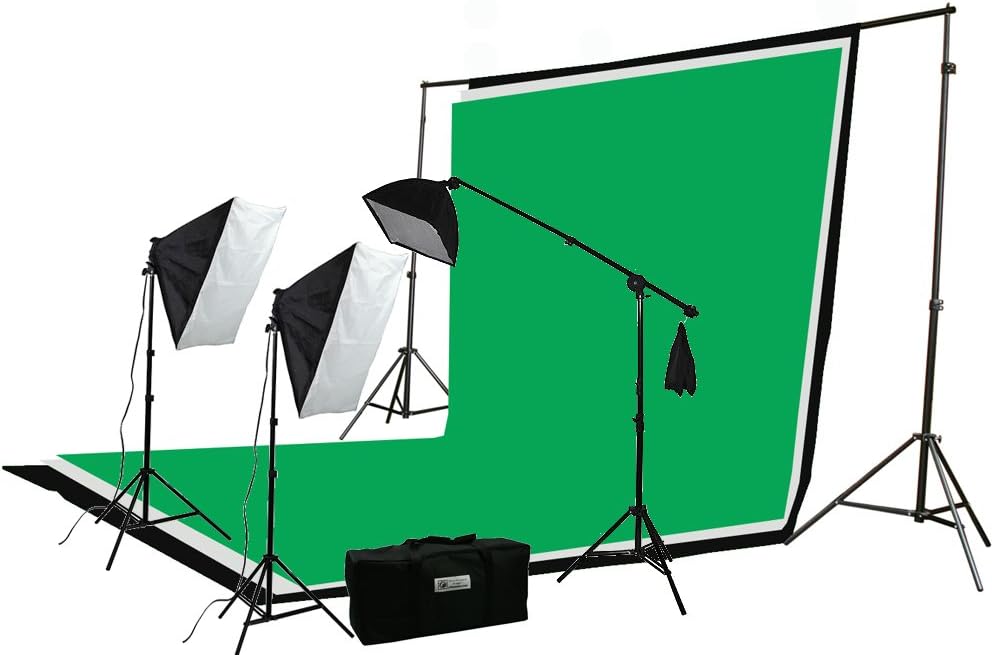
By now, you’ve gathered that achieving a true chroma key effect requires a physical green screen backdrop, not the virtual “where’d my ears go?” background effect often seen. A suitable 9-10′ muslin green screen backdrop will cost about twenty dollars on Amazon. I elected to spend more and get the green screen, crossbar, pair of backdrop supports and a bevy of studio lights and stands for $150.00. If you’ve got a way to hang a green sheet behind you (e.g., curtain rod, tacked to a wall, hung from the ceiling), that twenty dollar backdrop works just fine.
Home Studio Kit
Having created your background visuals and saved each slide as a still JPG or PNG image, you’ll load them into Zoom as Virtual Backgrounds. To do so, start Zoom and go to Virtual Background in the Settings menu. Locate and click the the small plus sign (+) (Arrow 1, below), then click on “Add Image” from the menu and navigate to where you’ve saved your background images. Add each image in this manner, keeping them in the order in which you want them displayed when presenting. Next, click the box to tell Zoom you have a green screen (Arrow 2), and finally, be sure the color shown matches your backdrop. Zoom should do this automatically, but you can also set it manually (Arrow 3).
Zoom’s Settings>Virtual Background screen
You’re ready to go, but before starting a presentation, launch Zoom and Virtual Background again. Practice selecting each background much as you might advance them as slides in a PowerPoint show, choosing them in succession while presenting. If you’ve loaded them in your preferred order, they will appear as options in that order. You will need to keep the Virtual Background settings panel open at all times during your presentation, so a second screen helps insure the settings panel doesn’t disappear behind another window. You don’t want to be fumbling around in search of the Virtual Backgrounds panel while speaking.
The Weather Map Technique is harder to describe than it is to pull off. The key to keeping it smooth and simple calls to mind the out-of-towner visiting Manhattan who asked a local, “How do I get to Carnegie Hall?”
The answer’s the same: “Practice, practice, practice!”
Wish List: I look forward to a day when Zoom natively supports dynamic backgrounds allowing us to feed PowerPoints directly to a background instead of a shared screen. Also, I’d like to be able to folder backgrounds topically. Affording hosts greater control over the layout of Zoom windows would be nice. In Zoom hearings, think how it would help to be able to group lawyers according to their role in the litigation.
“Time heals all wounds.” “Time is money.” “Time flies.”
To these memorable mots, I add one more: “Time is truth.”
A defining feature of electronic evidence is its connection to temporal metadata or timestamps. Electronically stored information is frequently described by time metadata denoting when ESI was created, modified, accessed, transmitted, or received. Clues to time are clues to truth because temporal metadata helps establish and refute authenticity, accuracy, and relevancy.
But in the realms of electronic evidence and digital forensics, time is tricky. It hides in peculiar places, takes freakish forms, and doesn’t always mean what we imagine. Because time is truth, it’s valuable to know where to find temporal clues and how to interpret them correctly.
Everyone who works with electronic evidence understands that files stored in a Windows (NTFS) environment are paired with so-called “MAC times,” which have nothing to do with Apple Mac computers or even the MAC address identifying a machine on a network. In the context of time, MAC is an initialization for Modified, Accessed and Created times.
That doesn’t sound tricky. Modified means changed, accessed means opened and created means authored, right? Wrong. A file’s modified time can change due to actions neither discernible to a user nor reflective of user-contributed edits. Accessed times change from events (like a virus scan) that most wouldn’t regard as accesses. Moreover, Windows stopped reliably updating file access times way back in 2007 when it introduced the Windows Vista operating system. Created may coincide with the date a file is authored, but it’s as likely to flow from the copying of the file to new locations and storage media (“created” meaning created in that location). Copying a file in Windows produces an object that appears to have been created after it’s been modified!
it’s crucial to protect the integrity of metadata in e-discovery, so changing file creation times by copying is a big no-no. Accordingly, e-discovery collection and processing tools perform the nifty trick of changing MAC times on copies to match times on the files copied. Thus, targeted collection alters every file collected, but done correctly, original metadata values are restored and hash values don’t change. Remember: system metadata values aren’t stored within the file they describe so system metadata values aren’t included in the calculation of a file’s hash value. The upshot is that changing a file’s system metadata values—including its filename and MAC times—doesn’t affect the file’s hash value.
Conversely and ironically, opening a Microsoft Word document without making a change to the file’s contents can change the file’s hash value when the application updates internal metadata like the editing clock. Yes, there’s even a timekeeping feature in Office applications!
Other tricky aspects of MAC times arise from the fact that time means nothing without place. When we raise our glasses with the justification, “It’s five o’clock somewhere,” we are acknowledging that time is a ground truth. “Time” means time in a time zone, adjusted for daylight savings and expressed as a UTC Offset stating the number of time zones ahead of or behind GMT, time at the Royal Observatory in Greenwich, England atop the Prime or “zero” Meridian.
Time values of computer files are typically stored in UTC, for Coordinated Universal Time, essentially Greenwich Mean Time (GMT) and sometimes called Zulu or “Z” time, military shorthand for zero meridian time. When stored times are displayed, they are adjusted by the computer’s operating system to conform to the user’s local time zone and daylight savings time rules. So in e-discovery and computer forensics, it’s essential to know if a time value is a local time value adjusted for the location and settings of the system or if it’s a UTC value. The latter is preferred in e-discovery because it enables time normalization of data and communications, supporting the ability to order data from different locales and sources across a uniform timeline.
Four months of pandemic isolation have me thinking about time. Lost time. Wasted time. Pondering where the time goes in lockdown. Lately, I had to testify about time in a case involving discovery malfeasance and corruption of time values stemming from poor evidence handling. When time values are absent or untrustworthy, forensic examiners draw on hidden time values—or, more accurately, encoded time values—to construct timelines or reveal forgeries.
Time values are especially important to the reliable ordering of email communications. Most e-mails are conversational threads, often a mishmash of “live” messages (with their rich complement of header data, encoded attachments and metadata) and embedded text strings of older messages. If the senders and receivers occupy different time zones, the timeline suffers: replies precede messages that prompted them, and embedded text strings make it child’s play to alter times and text. It’s just one more reason I always seek production of e-mail evidence in native and near-native forms, not as static images. Mail headers hold data that support authenticity and integrity—data you’ll never see produced in a load file.
Underscoring that last point, I’ll close with a wacky, wonderful example of hidden timestamps: time values embedded in Gmail boundaries. This’ll blow your mind.
If you know where to look in digital evidence, you’ll find time values hidden like Easter eggs.
E-mail must adhere to structural conventions to traverse the internet and be understood by different e-mail programs. One of these conventions is the use of a Content-Type declaration and setting of content boundaries, enabling systems to distinguish the message header region from the message body and attachment regions.
The next illustration is a snippet of simplified code from a forged Gmail message. To see the underlying code of a Gmail message, users can select “Show original” from the message options drop-down menu (i.e., the ‘three dots’).
The line partly outlined in red advises that the message will be “multipart/alternative,” indicating that there will be multiple versions of the content supplied; commonly a plain text version followed by an HTML version. To prevent confusion of the boundary designator with message text, a complex sequence of characters is generated to serve as the content boundary. The boundary is declared to be “00000000000063770305a4a90212” and delineates a transition from the header to the plain text version (shown) to the HTML version that follows (not shown).
Thus, a boundary’s sole raison d’être is to separate parts of an e-mail; but because a boundary must be unique to serve its purpose, programmers insure against collision with message text by integrating time data into the boundary text. Now, watch how we decode that time data.
Here’s our boundary, and I’ve highlighted fourteen hexadecimal characters in red:
Next, I’ve parsed the highlighted text into six- and eight-character strings, reversed their order and concatenated the strings to create a new hexadecimal number:
A decimal number is Base 10. A hexadecimal number is Base 16. They are merely different ways of notating numeric values. So, 05a4a902637703 is just a really big number. If we convert it to its decimal value, it becomes: 1,588,420,680,054,531. That’s 1 quadrillion, 588 trillion, 420 billion, 680 million, 54 thousand, 531. Like I said, a BIG number.
But, a big number…of what?
Here’s where it gets amazing (or borderline insane, depending on your point of view).
It’s the number of microseconds that have elapsed since January 1, 1970 (midnight UTC), not counting leap seconds. A microsecond is a millionth of a second, and 1/1/1970 is the “Epoch Date” for the Unix operating system. An Epoch Date is the date from which a computer measures system time. Some systems resolve the Unix timestamp to seconds (10-digits), milliseconds (13-digits) or microseconds (16-digits).
When you make that curious calculation, the resulting date proves to be Saturday, May 2, 2020 6:58:00.054 AM UTC-05:00 DST. That’s the genuine date and time the forged message was sent. It’s not magic; it’s just math.
Had the timestamp been created by the Windows operating system, the number would signify the number of 100 nanosecond intervals between midnight (UTC) on January 1, 1601 and the precise time the message was sent.
Why January 1, 1601? Because that’s the “Epoch Date” for Microsoft Windows. Again, an Epoch Date is the date from which a computer measures system time. Unix and POSIX measure time in seconds from January 1, 1970. Apple used one second intervals since January 1, 1904, and MS-DOS used seconds since January 1, 1980. Windows went with 1/1/1601 because, when the Windows operating system was being designed, we were in the first 400-year cycle of the Gregorian calendar (implemented in 1582 to replace the Julian calendar). Rounding up to the start of the first full century of the 400-year cycle made the math cleaner.
Timestamps are everywhere in e-mail, hiding in plain sight. You’ll find them in boundaries, message IDs, DKIM stamps and SMTP IDs. Each server handoff adds its own timestamp. It’s the rare e-mail forger who will find every embedded timestamp and correctly modify them all to conceal the forgery.
When e-mail is produced in its native and near-native forms, there’s more there than meets the eye in terms of the ability to generate reliable timelines and flush out forgeries and excised threads. Next time the e-mail you receive in discovery seems “off” and your opponent balks at giving you suspicious e-mail evidence in faithful electronic formats, ask yourself: What are they trying to hide?
The takeaway is this: Time is truth and timestamps are evidence in their own right. Isn’t it about time we stop letting opponents strip it away?
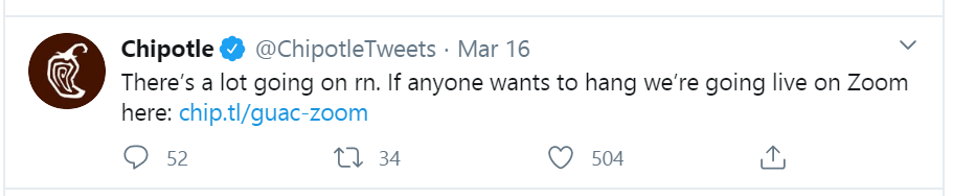
Distanced by Coronavirus, lawyers and teachers are flocking to the teleconferencing platform Zoom to meet and share screens. Zoom is also turning up as a way to emulate face-to-face social interactions ranging from AA meetings and book clubs to happy hours and rock concerts. Last week, the Chipotle fast food chain sought to bring a little joy to COVID-stressed customers by hosting an online concert with singer/songwriter Lauv. Things didn’t go as planned, and there’s a lesson there for lawyers and others needing meeting security.
Per Tressie Lieberman, Chipotle’s VP of digital and off-premise, “As we saw large scale events begin to get cancelled, we wanted to act fast and give our fans something to get excited about despite being surrounded by negative news.” Chipotle acted fast–too fast it seems–and assuredly gave viewers something to get excited about, though not as intended. Chipotle was forced to pull the plug after one attendee used Zoom’s Screen Share feature to broadcast pornography to hundreds of other attendees. ‘Zoombombing’: When Video Conferences Go Wrong New York Times, March 22, 2020
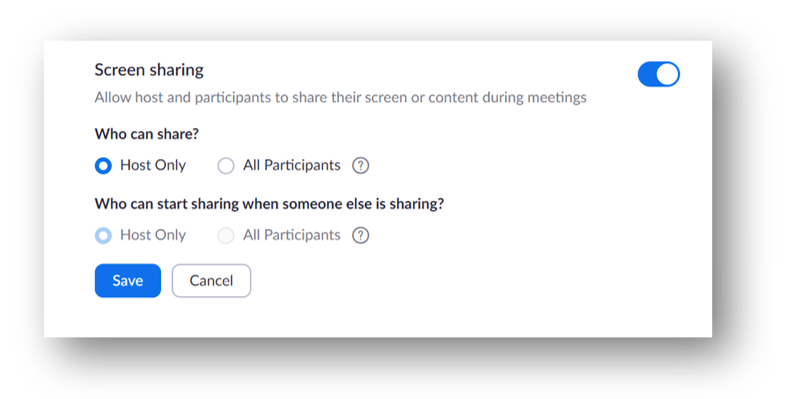
Whoever configured the Zoom meeting apparently failed to select the option that limits the ability of any meeting participant other than the host to share screens. As a result, any attendee—including any troll logging in anonymously—could share any content they like with all other attendees. It’s called Zoom bombing (like Photobombing) and it’s a growing disruption. If a Zoom bomber logs in multiple times, stopping the interloper is like playing Whack-a-Mole. The host shuts down one Zoom bombing instance only to push the Zoom bomber to the next and the next.
It’s an embarrassment that could have been avoided had the individual setting up the Zoom meeting changed a Screen Sharing option buried in the program’s settings menu, eschewing the default “All Participants” in favor of the the considerably safer “Host Only” as seen below.
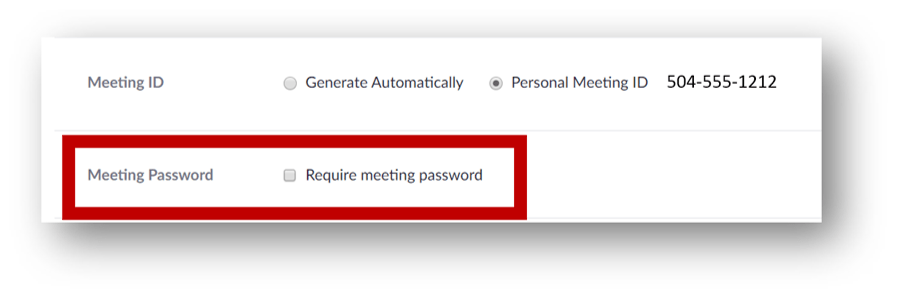
This unfortunate intrusion was caused by user error, not a vulnerability in the tool. But I’d been expecting something of a similar nature to occur since I noticed that Zoom issues every subscriber a personal Zoom meeting ID as an alternative to generating a one-time use meeting ID for every meeting. That’s a vulnerability. What it means is, if anyone learns the host’s personal Zoom meeting ID (hint: it’s the meeting number contained in the meeting invitation), anyone can attend the host’s personal meetings whether invited or not. Of course, if the host is managing participants and keeping a close eye on headcounts, an uninvited lurker may be spotted. If it were a meeting of many counsel in multidistrict litigation or other matters characterized by large teams, it would be easy for an opponent to log in and listen undetected.
Here are other simple tips to secure your Zoom meetings against Zoom bombers and eavesdroppers:
1. Protect your personal Zoom meeting ID as you would your personal passwords. Never use your personal Zoom meeting ID to host a meeting. Instead, have Zoom automatically generate a unique meeting ID for your invitations.
2. Require a meeting password. Zoom will generate one for your invitees when you check the box.
3. Allow only authenticated users to join. To gain entry, invited users will need to have a Zoom user account (they’re free) and log into Zoom.
4. Require participants attend with video cameras turned on, at least until the host can identify all the participants in the meeting and confirm they were invited.
5. Lock the meeting after all invited attendees have joined and prevent latecomers. To lock an ongoing meeting, click “Manage Participants,” then click “More” at the bottom of the Participants screen. Finally, choose” Lock Meeting.”
Thanks to the Coronavirus crisis, my 280-odd colleagues on the University of Texas Law School faculty are valiantly struggling to transpose their years of classroom skill and content to the daunting digital realm of remote instruction using Zoom teleconferencing. Zoom has been a part of the University of Texas’ Canvas learning platform for less than 48 hours, and over 3,000 professors at UT Austin have just two weeks to be ready to teach via Zoom when some 40,000 students return from an extended Spring Break. That’s just the UT Austin campus. It’s closer to a quarter of a million students and 21,000 faculty in the whole U.T. system who face this unprecedented test of their resiliency. I’m deeply proud of how hard everyone is trying to rise to the challenge.
I’ve taught classes with Zoom for years, so apart from misplacing a window now-and-then, I find Zoom simple to use and navigate. In a modest effort to help my colleagues, I prepared a one-page cheat sheet. It might help anyone trying to use Zoom to navigate Law in the Time of Cholera, I mean, Coronavirus. You can download it below, and its text follows:
*Switching between open applications with the last shortcut is a quick way to get your bearings. For a complete list of shortcuts, click your profile picture in Zoom, then Settings>Keyboard Shortcuts. NOTE: Zoom Shortcuts work when a Zoom screen is in focus. To enable a shortcut to work globally (from any application screen), check the box “Enable Global Shortcut” alongside that shortcut in Keyboard Shortcuts.
To Begin Screen Sharing: Click the green “Share” button on the meeting menu bar or type Alt+Shift+S (PC) or Command⌘+Shift⇧+S (Mac). When the Share window appears, select the source you wish to share. You can choose from among any screen (monitor), any running application, a whiteboard or your iPhone/iPad.
If you want to share a PowerPoint presentation:
Launch the PowerPoint slide show presentation
ALT+Tab (PC) or Command⌘+Tab (Mac) to the Zoom meeting window (with the menu bar at the bottom) and click “Share.”
Check “Share Computer Sound” at the bottom left of the Share window if you want students to hear sound in your PowerPoint presentation.
Select “PowerPoint Slide Show,” then click the blue “Share” button.
To stop sharing, return to Zoom meeting window and click “Stop Share” or type ALT-S (PC) or Command⌘+Shift⇧+T (Mac).
If you want to share an iPhone or iPad screen:
On your iPhone or iPad, connect to the same Wi-Fi network as the computer running Zoom.
In Zoom, select Share>iPhone/iPad>Share
On your iPhone or iPad, select AirPlay (swipe down from top right corner for iOS 12 or newer or up from bottom for iOS 11 or older). Select Screen Mirroring>Zoom.
HINT: Share your iPhone or iPad camera screen when you need an impromptu document camera or to show a place or object or conduct an interview.
“Is Bob on the call? Will someone PLEASE e-mail Bob?
“Everyone, everyone, PLEASE mute your #$%^& line!”
“THERE’S there’s, AN an, ECHO, Echo, echo, ech….”
“How do we share our screen again? Wait I see it. No, that’s not it.”
It’s 2020; one year AFTER the events of the film Blade Runner. Still no flying cars. No androids. And apparently no lawyers capable of carrying off a flawless video conference.
COVID-19 is pushing everyone to videoconferencing. I’ve long used it to webcast and teach law classes, so thought I’d share a few tips to exorcise the gremlins.
SOUND: While the microphone on your laptop may suffice, a quality microphone makes a big difference in sound quality, especially amidst ambient noise. My buddy Ernie “the Attorney” Svenson has a quality microphone and scissors-arm stand in his office/studio. It’s great, and you could probably rig up something similar for under a hundred dollars. For my money, I adore my $50 Blue Snowball microphone and stand. Great pickup and timbre. It plugs into any USB port (no fumbling for a mike jack) and just works every time. Bulletproof.
LIGHTING: There’s a reason cinematographers spend so much time fussing over lighting. It’s important because much of what we “say” in teleconferences is conveyed by facial expression and small gestures. Overhead lighting casts ghoulish shadows. The shadows caused by back lighting (e.g., a window behind you) make everyone look like they’re in witness protection. Your face needs to be brightly and evenly lit, best accomplished by diffused and/or reflected light.
I found a better way. My desk faces a white wall, so my compromise solution was to position a single $39 softbox studio light behind my center monitor and bounce the light off the wall and ceiling. I only turn it on for conferences, but it would be great for those struggling with Seasonal Affective Disorder. Videoconferencing is the new normal so invest in purpose-built lighting. There are loads of low-cost options designed for the task, from LED light rings to studio setups worthy of Steven Spielberg.
CAMERA: If you’re going to be working from a desktop machine, get a decent camera. You needn’t spend a fortune. I’m currently content with the Logitech C922 USB webcam. It has 1080p resolution and is sturdy and stable perched atop my monitor. I can adjust it easily, and it’s built-in microphone is a solid backup for my (never fail) Blue Snowball.
SCREENS: I use and love Zoom as my teleconferencing platform. In conjunction with PowerPoint, I regularly hold classes on Zoom ranging from 90 minutes to three hours. Zoom offers loads of features and flexibility, but it also dumps three windows across my screens. Alongside PowerPoint, an active presentation window, plus chat and question boxes, I’m frequently shifting and sizing six or more windows in search of an optimum layout. So, if you’ve not yet embraced the convenience of multiple monitors, make the coronavirus your excuse to upgrade. I position whatever content my students see via screen share to be as closely aligned below the camera as possible. That way, I can face the camera and not appear to be looking sideways.
BACKGROUND: I’ve tried professional draping and chromakey backgrounds. They just got in the way, and they were a pain to put up, take down and stow. In the end, I just cleaned up the room and assembled a wall of New Orleans art, photos and mementos behind me. My advice is minimize distractions.
≈ Comments Off on You Don’t Want to Know What It Means to Miss New Orleans this May 7-8
My bosom buddy and lifestyle mentor, Ernie “the Attorney” Svenson, has spent much of his career trying to share the smart stuff he’s learned with other lawyers. The last few years, aided by his wonderful wife, Donna, he’s focused on lawyer marketing and systematized practice efficiency. Ernie has a large cadre of avid followers who periodically convene at the feet of the master to learn the Tao of perfected practice and taste the sweetness of New Orleans. It’s always a great group and this May, the conclave will be bigger than any before. Ever dedicated to labor saving, Ernie drafted copy to help me invite you to join our merry band. It’s not my voice, but it’s an excellent voice; so, I share it here verbatim:
I want to let you know about a special conference for solo and small firm lawyers (which I’m speaking at)… It’s a two-day conference for lawyers who want to make big improvements in their practices, specifically…
—More streamlined workflows
—Less email overload
—More document automation
—Less paper and less disorganization
—More clients (good ones, not just anything that walks in the door)
—More profit & more steady cashflow
—Less overhead & fewer worries
—More clarity about exactly how to simplify, automate and outsource the complex workload in a busy small firm practice.
Folks who register will get immediate access to online training so they can start making those improvements right away. And the conference organizer (my good friend Ernie Svenson) is also doing free weekly webinars leading up to the event. The full price of the conference, with all the bonuses, is $1,295 but the special pricing is still in effect and so if you go to the website you can register for only $850. But… Ernie gave the speakers a limited number of “speakers discount” tickets and so I wanted to give you the opportunity to use one that I was given. It will give you an additional $200 off the $850 discount. Go check out all the details here. In other words, you can register with this link for $649https://lawfirmautopilo.samcart.com/products/small-firm-bootcamp?coupon=speakerdisc And use this discount code when you decide to register so you get that extra discount. But don’t procrastinate in using the special speakers’ discount. There is only a limited number of these speakers’ discounts and they are available on a first-come-first-served basis. So check it out and see if it’s something you can do, and will find helpful to your practice. Best, Craig
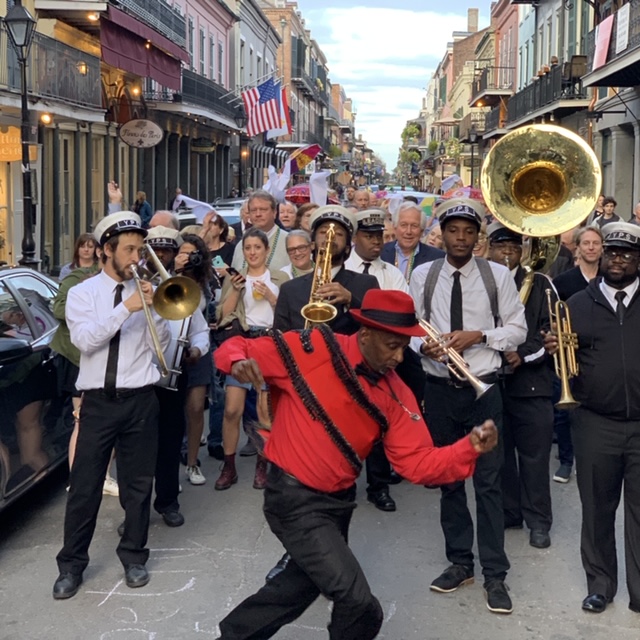
So, (the real me, again) what’s the worst that could happen here? You come, meet some great people, listen to good music, dance in the streets behind a second line brass band, eat delicious food, maybe laugh and drink a wee bit more than your norm? Too, you’re sure to leave with some splendid ideas for your law practice and broaden your network of like-minded solo and small firm practitioners.
We don’t call New Orleans “The City That Care Forgot” and “The Big Easy” for nothing. If you can’t have a wonderful time in NOLA, you can’t have one anywhere. Pair that with some practical strategies to improve the efficiency and profitability of your practice., along with a hefty 50% discount. Now, how can you NOT come? Trust me, you don’t want to know what it means to miss Ernie and Donna’s New Orleans, May 7-8.
Recently, I wrote on the monstrous cost of TIFF+ productions compared to the same data produced as native files. I’ve wasted years trying to expose the loss of utility and completeness caused by converting evidence to static formats. I should have recognized that no one cares about quality in e-discovery; they only care about cost. But I cannot let go of quality because one thing the Federal Rules make clear is that producing parties are not permitted to employ forms of production that significantly impair the searchability of electronically stored information (ESI).
In the “ordinary course of business,” none but litigators “ordinarily maintain” TIFF images as substitutes for native evidence When requesting parties seek production in native forms, responding parties counter with costly static image formats by claiming they are “reasonably usable” alternatives. However, the drafters of the 2006 Rules amendments were explicit in their prohibition:
[T]he option to produce in a reasonably usable form does not mean that a responding party is free to convert electronically stored information from the form in which it is ordinarily maintained to a different form that makes it more difficult or burdensome for the requesting party to use the information efficiently in the litigation. If the responding party ordinarily maintains the information it is producing in a way that makes it searchable by electronic means, the information should not be produced in a form that removes or significantly degrades this feature.
FRCP Rule 34, Committee Notes on Rules – 2006 Amendment.
I contend that substituting a form that costs many times more to load and host counts as making the production more difficult and burdensome to use. But what is little realized or acknowledged is the havoc that so-called TIFF+ productions wreck on searchability, too. It boggles the mind, but when I share what I’m about to relate below to opposing counsel, they immediately retort, “that’s not true.” They deny the reality without checking its truth, without caring whether what they assert has a basis in fact. And I’m talking about lawyers claiming deep expertise in e-discovery. It’s disheartening, to say the least.
A little background: We all know that ESI is inherently electronically searchable. There are quibbles to that statement but please take it at face value for now. When parties convert evidence in native forms to static image forms like TIFF, the process strips away all electronic searchability. A monochrome screenshot replaces the source evidence. Since the Rules say you can’t remove or significantly degrade searchability, the responding party must act to restore a measure of searchability. They do this by extracting text from the native ESI and delivering it in a “load file” accompanying the page images. This is part of the “plus” when people speak of TIFF+ productions.
E-discovery vendors then seek to pair the page images with the extracted text in a manner that allows some text searchability. Vendors index the extracted text to speed search, a mapping process intended to display the page where the text was located when mapped. This is important because where the text appears in the load file dictates what page will be displayed when the text is searched and determines whether features like proximity search and even predictive coding work as well as we have a right to expect. Upshot: The location and juxtaposition of extracted text in the load file matters significantly in terms of accurate searchability. If you don’t accept that, you can stop reading.
Now, let’s consider the structure of modern electronic evidence. We could talk about formulae in spreadsheets or speaker notes in presentations, but those are not what we fight over when it comes to forms of production. Instead, I want to focus on Microsoft Word documents and those components of Word documents called Comments and Tracked Changes; particularly Comments because these aren’t “metadata” by any stretch. Comments are user-contributed content, typically communications between collaborators. Users see this content on demand and it’s highly contextual and positional because it is nearly always a comment on adjacent body text. It’s NOT the body text, and it’s not much use when it’s separated from the body text. Accordingly, Word displays comments as marginalia, giving it the power of place but not enmeshing it with the body text.
But what happens to these contextual comments when you extract the text of a Word document to a load file and then index the load files?
There are three ways I’ve seen vendors handle comments and all three significantly degrade searchability:
First, they suppress comments altogether and do not capture the text in the load files. This is content deletion. It’s like the content was never there and you can’t find the text using any method of electronic search. Responding parties don’t disclose this deletion nor is it grounded on any claim of privilege or right. Spoliation is just S.O.P.
Second, they merge the comments into the adjacent body text. This has the advantage of putting the text more-or-less on the same page where it appears in the source, but it also serves to frustrate proximity search and analytics. The injection of the comment text between a word combination or phrase causes searches for that word combo or phrase to fail. For example, if your search was for ignition w/3 switch and a four-word comment comes between “ignition” and “switch,” the search fails.
Third, and frequently, vendors aggregate comments and dump them at the end of the load file with no clue as to the page or text they reference. No links. No pointers. Every search hitting on comment text takes you to the wrong page, devoid of context.
Some of what I describe are challenges inherent to dealing with three-dimensional data using two-dimensional tools. Native applications deal with Comments, speaker notes and formulae three-dimensionally. We can reveal that data as needed, and it appears in exactly the way witnesses use it outside of litigation. But flattening native forms to static images and load files destroys that multidimensional capability. Vendors do what they can to add back functionality; but we should not pretend the results are anything more than a pale shadow of what’s possible when native forms are produced. I’d call it a tradeoff, but that implies requesting parties know what’s being denied them. How can requesting party’s counsel know what’s happening when responding parties’ counsel haven’t a clue what their tools do, yet misrepresent the result?
But now you know. Check it out. Look at the extracted text files produced to accompany documents with comments and tracked changes. Ask questions. Push back. And if you’re producing party’s counsel, fess up to the evidence vandalism you do. Defend it if you must but stop denying it. You’re better than that.













 Ball in your Court