
 “Will the person who left their cell phone at the security checkpoint please retrieve it?” People constantly leave their phones behind at security checkpoints, washrooms, checkout counters and charge stations. Too, the little buggers slip out of pockets and purses. More than three million phones are lost in the U.S. every year, and less than one-in-ten lost phones finds its way home. Saturday night, I found an iPhone on the floor at a big party in the Faubourg Marigny in New Orleans. I located the owner by asking everyone in sight if they’d lost a phone, and when I found her, the owner didn’t know she’d dropped it.
There are high tech tools to find lost phones like the Find My iPhone app or Tile locators; but, these only work for owners and require a second connected device. What do the persons who find your phone or the Lost & Found staff do to quickly locate you, often before you realize your phone’s gone? You don’t have an ID tag with contact data on your phone, right?
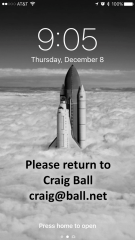
I do something that’s so darn simple, it’s a wonder it’s not already an option on every iPhone: I embed my name and email address in the lock screen photo (i.e., the wallpaper image that appears when you press the sleep/wake button, even when the phone is locked). Now, any announcement over the P.A. includes my name, and I’ve furnished a secure way for good samaritans to contact me to arrange return. It’s also an easy means to supply emergency contact information, should the good samaritan find you dropped alongside your phone.
There are plenty of ways to add text to your lock screen image–I’ve used the drawing tools in PowerPoint–but the simplest is to use the image editing tools right on your iPhone. Here’s how (in iOS 10.1.1):
- Select an image to serve as your lockscreen wallpaper. Use one with not-too-busy space for text (like the clouds in mine). The text location shouldn’t conflict with the date and time text. You may prefer to use a picture of yourself to make it easier to find you and prove it’s your phone.
- Duplicate the image so as not to alter your original. Do this by selecting Share (box with the up arrow) and Duplicate.
- Working with the duplicate image, choose Edit from the toolbar (abacus-like slider), then choose More (circle with three dots). Select Markup (toolbox icon) and finally choose the Text option (uppercase “T” in a box).
- A text box will appear in the center of your image. You can resize it by dragging the blue dots or reposition it by dragging the box. You can change the font face, font size, text color and alignment from the menu bar.
- Type your information. Be sensible, e.g., don’t include your home address, and don’t use your mobile number (duh). Click Done (upper right corner).
- To make the edited image your lockscreen wallpaper, go to Settings>Wallpaper>Choose a New Wallpaper. In All Photos, navigate to the annotated image you just created and select it (tap). Move and scale the image as suits you, then select Set from the menu and choose Set Lock Screen. You’re done!


 As I stow the turkey platter and box up the pilgrim décor, I’m reminded that it’s time once more to celebrate E-Discovery Day, TODAY, Thursday, December 1. No doubt, you’re saying, “So SOON?!?! I still haven’t retrieved those E-Discovery Day 2015 balloons that got loose in the atrium, and who’s going to eat all that E-Discovery Day Kringle taking up space in the office freezer?” (Special-ordered from Racine in the traditional e-discovery flavor, Cinnamon, TIFF and Tears™).
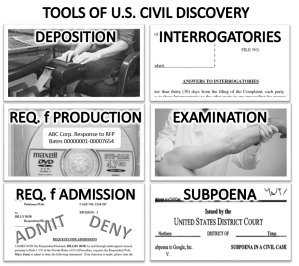 I am fortunate to teach electronic discovery and digital evidence in many venues. There’s the semester-long,
  It’s said that the difference between men and boys is the price of their toys. True enough. A benefit of adulthood is that, if you’re lucky, you can splurge on stuff you dreamed of as a child. For me, a boyish passion was remote sensing and control. When you’re small and powerless, you feel bigger and empowered to monitor and control things from afar, even if “afar” is just a few feet away. So, before I began fooling with phones and multi frequency switching systems as an adolescent, I was a grade schooler stringing, first real string, then wires and finally transmitters and receivers to turn things on and off and monitor my little world.




 Ball in your Court